- Navigate to course
- Add a module
- Click plus sign on module:

- choose add “external tool”
- Scroll down the list of options to “Springshare Libguides LTI to Canvas v2”
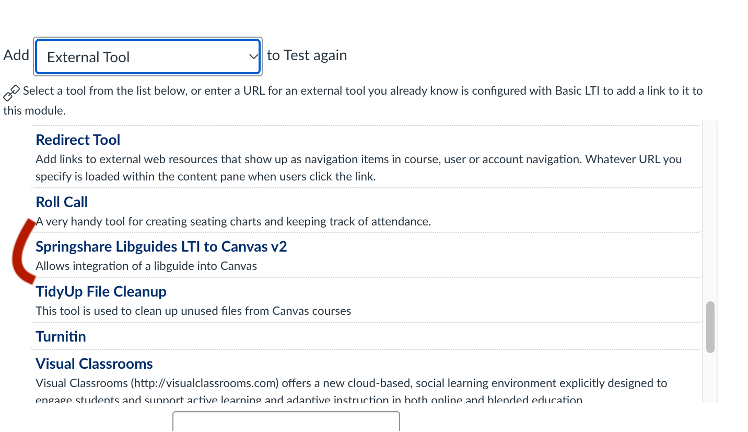
Scroll down further to see a few more fields (you can leave the defaults for now, or give the libguide a title), and click “Add item”

- The dialogue will close and you will see the Canvas course’s home editing page again. Click on “Springshare Libguides LTI to Canvas v2”:

Once you click on this, you should see a screen with options of whether to select a content type (aka a full guide or a single guide/block within it):

Once you have selected the content type, then you can start typing the name of the LibGuide to see full titles.

- Guide page is optional, depending on your content type.
- Click the "Embed content" button
- You will be taken back to the Modules page in Canvas.:
- Make sure to publish, by clicking the circle with a slash through it
- You can change the name of the module that is shown to students by clicking edit and editing the title